> For the complete documentation index, see [llms.txt](https://documentation.docspire.ai/llms.txt). Markdown versions of documentation pages are available by appending `.md` to page URLs; this page is available as [Markdown](https://documentation.docspire.ai/technical-documentation/integrations/webhook-input-integration-testing-with-postman-request.md).
# Webhook Input Integration – Testing with Postman Request
### Overview
Webhook Input allows external systems to send documents to Docspire for processing via HTTP POST requests. This enables automated document ingestion from third-party applications, custom workflows, or any system capable of making HTTP calls.
Common use cases include triggering document processing from CRM systems, integrating with document management platforms, automating invoice processing from email attachments, and building custom upload portals.
### Prerequisites
Before setting up webhook input, ensure you have:
* Administrator access to your Docspire organization
* An external system capable of sending HTTP POST requests
* Documents in supported formats (PDF, DOCX, PNG, JPG)
### Configuring Webhook Input
#### Step 1: Access Webhook Configuration
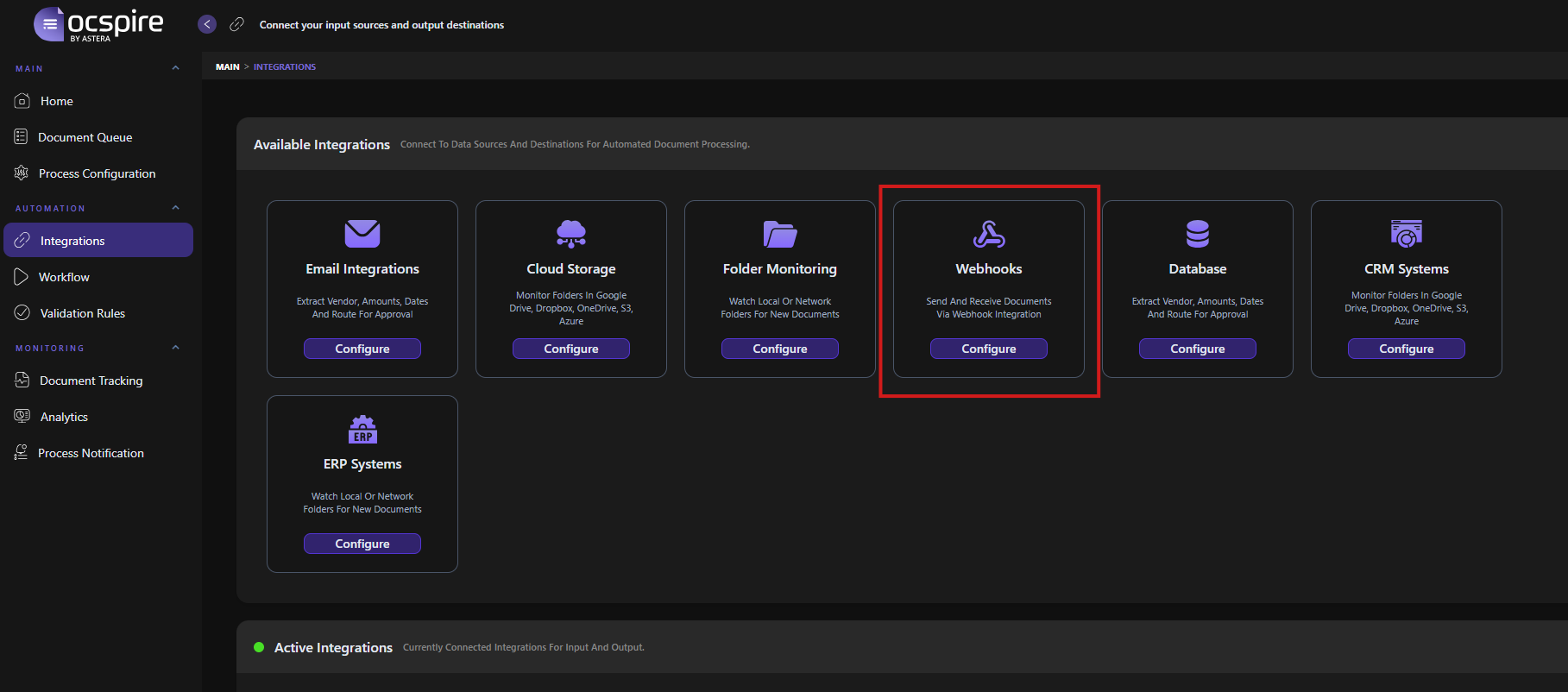
1. Navigate to **Automation > Integrations** in the left sidebar.
2. Locate the **Webhooks** card in the Available Integrations section.
3. Click **Configure** to open the Webhook Configuration dialog.
#### Step 2: Generate Webhook Credentials
1. Select the **Webhook Input** tab.
2. Click **Save Configuration** to generate your webhook credentials.
3. The system will generate two credentials:
| **Credential** | **Description** |
| -------------- | ------------------------------------------------------------------------------------------------------------------- |
| Secret Key | Authentication token required in the X-Docspire-Secret header of all requests |
| Webhook URL | The endpoint URL where documents should be sent (e.g., ) |
#### Step 3: Copy Your Credentials
In the **Webhook Credentials** section:
1. Click **Copy** next to the **Secret Key** field to copy your authentication token.
2. Click **Copy** next to the **Webhook URL** field to copy your endpoint URL.
3. Store these credentials securely. You will need them to configure your external system.
### API Specification
When sending documents to Docspire, your request must include:
| **Property** | **Value** |
| --------------- | ------------------------------------ |
| HTTP Method | POST |
| Content-Type | multipart/form-data |
| Required Header | X-Docspire-Secret: {your-secret-key} |
#### Request Body Fields
| **Field** | **Type** | **Required** | **Description** |
| ------------ | -------- | ------------ | ----------------------------------------------------------------------------------- |
| files | File\[] | Yes | One or more document files to process |
| DocumentType | String | No | Specify the document type (e.g., Invoice, Receipt). Leave empty for auto-detection. |
| BusinessId | String | No | Your internal reference ID (max 50 characters) |
### Example: Sending Documents with Postman
This example demonstrates how to send a document to Docspire and retrieve the processing results using Postman.
#### Part 1: Send a Document for Processing
4. Open Postman and create a new request.
5. Set the request method to **POST**.
6. Paste your **Webhook URL** in the request URL field.
7. Go to the **Headers** tab and add a new header:
| Key | Value |
| ----------------- | ----------------- |
| X-Docspire-Secret | {your-secret-key} |
8. Go to the **Body** tab and select **form-data**.
9. Add a new key named **files**. Change the type from "Text" to **File** using the dropdown.
10. Click **Select Files** and choose the document you want to process.
11. Click **Send** to submit the request.
You will receive a JSON response confirming the document was received:
#### Part 2: Retrieve Processing Results
4. From the response above, copy the **documentId** value.
5. Create a new request in Postman.
6. Set the request method to **GET**.
7. Construct the URL by appending the document ID to the process endpoint:
`https://server.docspire.ai/d/integrations/webhook/process/{documentId}`
Example:
`https://server.docspire.ai/d/integrations/webhook/process/9680fe06-3803-49e9-95c4-50035ea13775`
8. Go to the **Headers** tab and add the same authentication header:
| **Key** | **Value** |
| ----------------- | ----------------- |
| X-Docspire-Secret | {your-secret-key} |
9. Click **Send** to retrieve the processing results.
10. The response will contain the extracted data along with accuracy details for each field.
#### Part 3: Verify in Document Queue
You can also verify document processing in the Docspire interface:
4. Navigate to **Main > Document Queue** in the left sidebar.
5. Look for your document in the list. It will show with a **Running** status while processing.
6. Once processing completes, the status changes to **Success** or **In Review**.
7. Click **View Results** to see the extracted data in the interface.
### Regenerating Credentials
If you need to rotate your credentials for security purposes:
13. Open the Webhook Configuration dialog.
14. Click **Regenerate Credentials**.
15. Update all connected systems with the new Secret Key.
> Warning: Regenerating credentials immediately invalidates the old Secret Key. All systems using the old credentials will receive authentication errors until updated.
### Troubleshooting
| **Issue** | **Solution** |
| -------------------------------------- | -------------------------------------------------------------------------------- |
| 401 Unauthorized | Verify the X-Docspire-Secret header contains the correct Secret Key. |
| 400 Bad Request | Ensure Content-Type is multipart/form-data and the files field is present. |
| Document not appearing in queue | Check the response for rejectionReason. Verify file format is supported. |
| Processing stuck on Running | Large or complex documents may take longer. Check Document Tracking for details. |
| Invalid credentials after regeneration | Update all connected systems with the new Secret Key. |
### Related Features
* **Document Queue** – View and manage documents received via webhook.
* **Document Tracking** – Monitor the processing status of webhook-submitted documents.
* **Webhook Output Integration** – Send processed results to external systems.
* **Process Notifications** – Set up alerts for webhook-related processing events.