# UI Walkthrough
This document provides a comprehensive overview of the Docspire web client interface and its components.
### System Overview
Docspire is an intelligent document processing platform that provides automated data extraction, validation, and integration capabilities. The platform supports PDF, image (JPG, PNG), spreadsheet (XLS, XLSX), Word document (DOCX), and EDI document formats.
### Navigation Structure
The Docspire interface contains four primary sections:
* Main - Core document processing functions
* Automation - Workflow configuration and setup
* Monitoring - Progress tracking and analytics
* Account - Settings and preferences
### Main
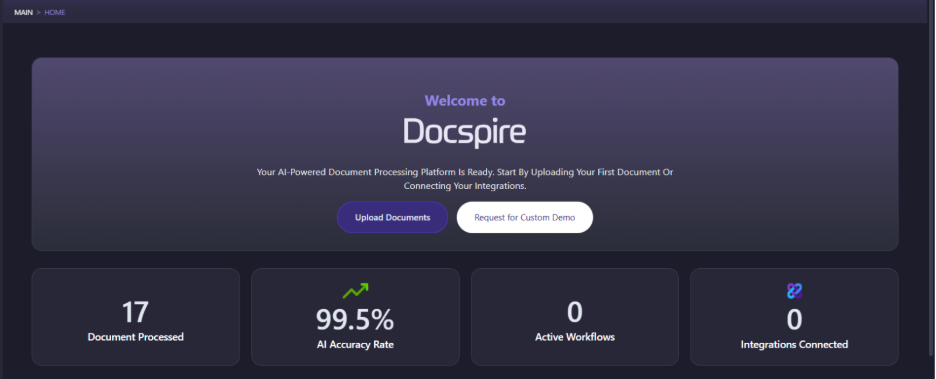
#### Home
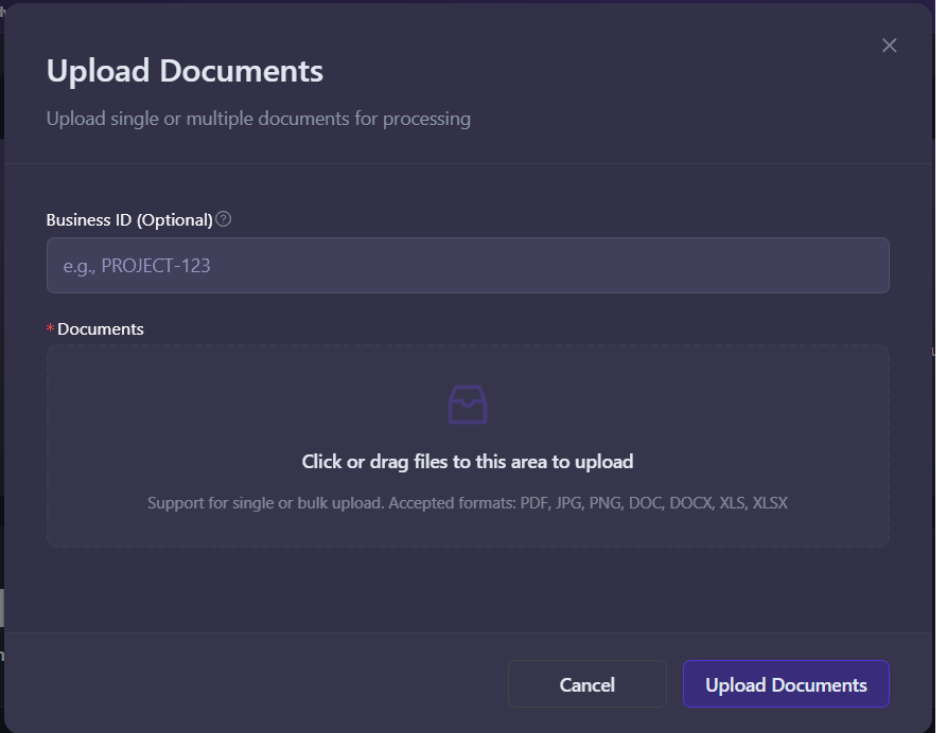
**Upload Documents**
1. Select Upload Documents
2. Provide a business identifier, such as an applicant ID or vendor ID, to associate with the documents (optional)
3. Upload the document/s. The following methods are available:
4. Drag and drop functionality
5. File browser selection
6. Bulk upload capability
7. Supported formats: PDF, JPG, PNG, DOC, DOCX, XLS, XLSX
8. Uploaded documents will appear in the Document Queue
**Request for Custom Demo**
The Request for Custom Demo button allows you to share your use case details so the Docspire team can deliver a customized demo.
The custom demo provides a personalized demonstration of Docspire tailored to specific business needs and use cases, allowing potential users to see the platform working with their actual documents and requirements.
Required Information
* Contact Details: Full name, company name, email address, and phone number (optional)
* Primary Use Case: Selection from predefined document processing scenarios
* Document Volume (optional): Expected monthly document processing volume
* Current Systems To Integrate (optional): Select the systems you want to inegrate
* Specific Requirements (optional): Detailed description of challenges, questions, or particular needs to address during the demo
* Sample Documents (optional): Upload actual documents for processing during the demonstration
**Operational Metrics**
The Home dashboard displays comprehensive operational metrics:
* Documents Processed - Cumulative count of successfully processed documents
* AI Accuracy Rate - Average AI extraction accuracy percentage, updated per batch completion
* Active Workflows – Number of currently running workflows
* Integrations Connected – Number of currently active integrations
#### Document Queue
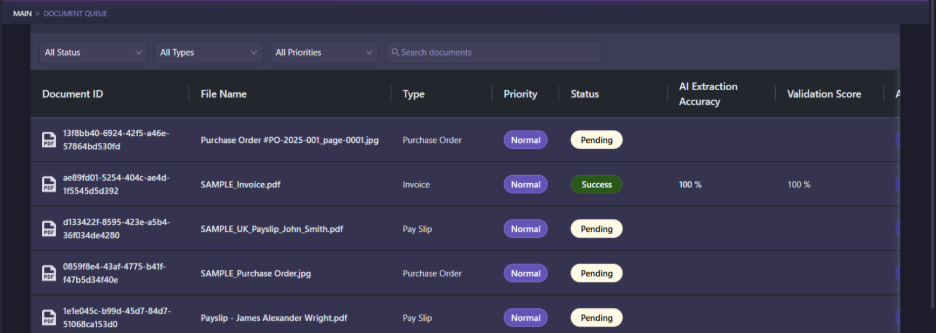
Document Queue gives a view of all the documents available in your Docspire account. This includes sample files, uploaded files, and files that are delivered through integrations. Sample files are available in the upload section for testing purposes. Your uploaded documents will also appear in the Document Queue.
**Document information displayed:**
* Document ID: Unique identifier for the document
* File Name
* Priority
* Status Pending if the document has not been processed yet, Running if the document is currently processing, Success if the document has been processed successfully, Error if the document has encountered an error, and In Review if the document requires human review.
* AI Extraction Accuracy: Percentage accuracy of the AI model in extracting data from the input document.
* Validation Score: Percentage score of the extracted data based on the passed validation rules.
* Actions: List of clickable actions that can be performed on a document, including Process, Reprocess, Track, Review, and View Results.
**Document Search and Filtering**
Search and filter capabilities include:
* Status filtering (Pending, Processing, Complete, Failed)
* Document type filtering
* Search by the document name
### Monitoring Section
#### Document Tracking
Document Tracking window can either be opened by clicking on the Document Tracking tab on the left panel, or by clicking Track for a document in the Document Queue.
Document processing pipeline monitoring includes:
1. Searching for documents
2. Real-time status visibility across processing stages:
3. Initial data reading
4. AI extraction
5. Validation checks
6. Export preparation
7. Historical data available for all processed documents
Document Tracking is covered in depth on a separate page.
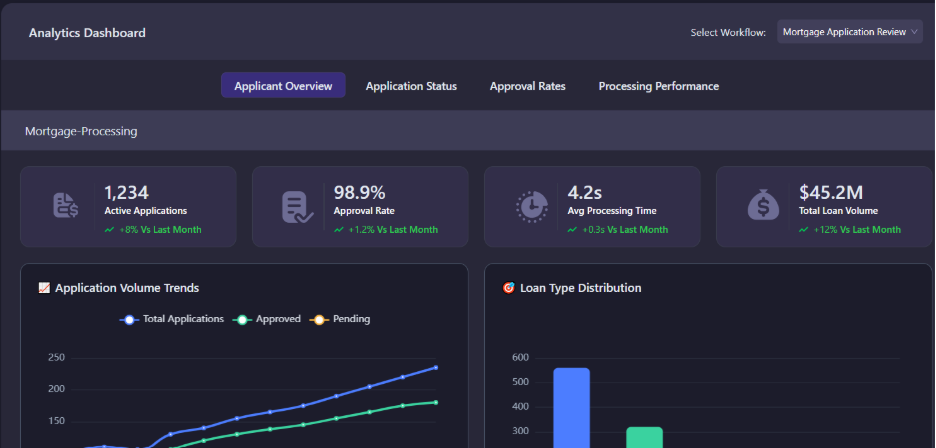
#### Analytics Dashboard
**Performance Insights**
Use-case specific analytics available for:
* Invoice processing (AP Automation)
* Mortgage Application Review
**Available Metrics**
* Processing volume trends
* Accuracy rates over time
* Validation pass/fail ratios
* Vendor or application-specific performance
#### Process Notifications
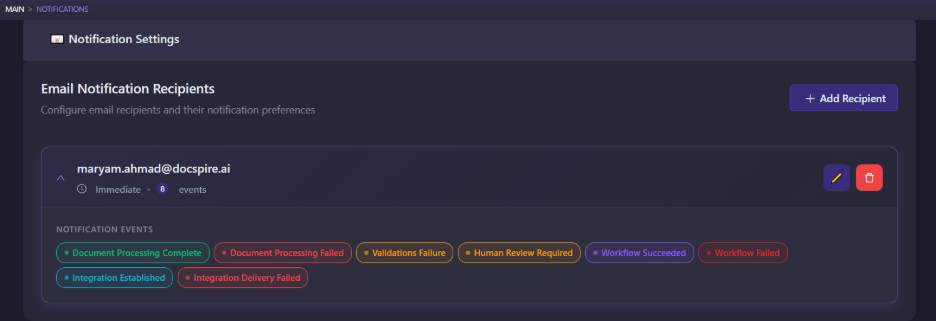
**Notification Settings**
Navigate to Process Notification under Monitoring
Configuration options:
1. Recipient email addresses
2. Trigger events:
1. Document completion
2. Workflow succeeded
3. Workflow failed
4. Validation failures
5. Human review
6. System errors
7. Integration established
**Recent Notifications**
This section displays a list of all the recent notifications sent by the system.
### Automation
Automation section covers configurations that can enable automating the entire document processing lifecycle based on your customer integrations and business rules.
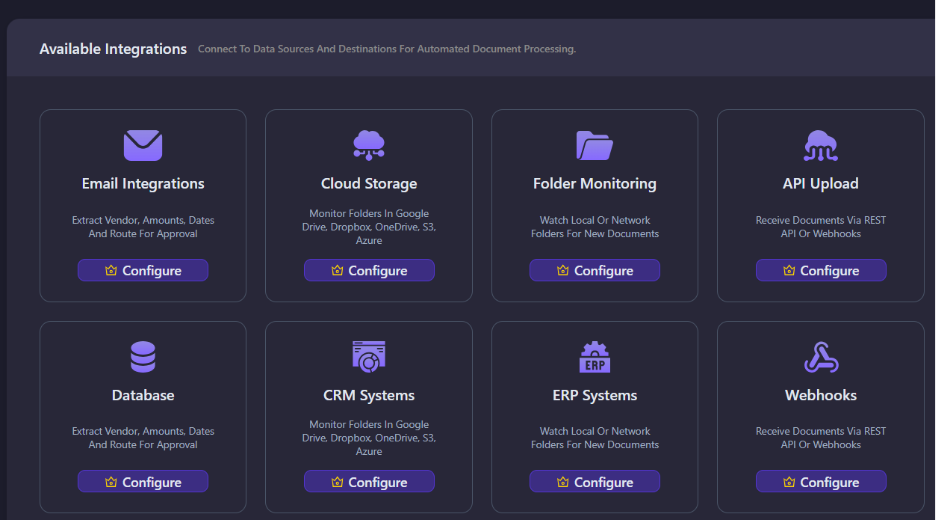
#### Integrations
Supported system connections:
* Email
* Cloud storage
* Local or network folder
* Document uploads via API
* Database connections
* ERP systems
* Webhooks
#### Workflow
Automated processing pipeline capabilities:
* Pre-built workflow templates
* Custom data extraction rules
* Validation criteria definition
* Destination system configuration
* Scheduled processing runs
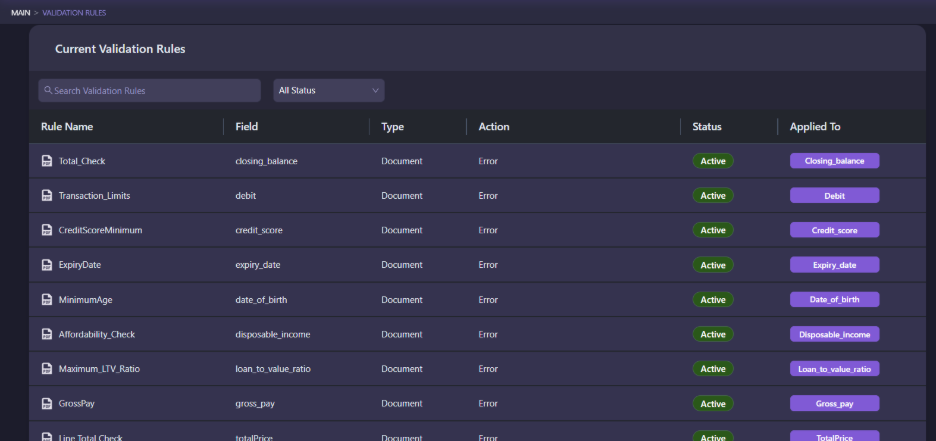
#### Validation Rules
Validation Rules tab under Automation takes you to the window which displays a list of Validation Rules that are applied to your documents.