# Feedback-Based Document Reprocessing
### Overview
Docspire's feedback-based reprocessing feature allows you to improve document extraction results by providing natural language instructions. When a document's initial extraction doesn't meet your expectations, you can guide the system to better understand how to extract and format data from your specific documents.
This feature is particularly useful for documents with unique layouts, industry-specific terminology, or custom formatting requirements. Your feedback helps the AI learn to handle similar documents more accurately in the future.
#### When to Use Feedback-Based Reprocessing
Consider using this feature when:
* The document type was incorrectly detected
* Specific fields were missing or extracted incorrectly
* Data formatting doesn't match your requirements (dates, numbers, currencies)
* The AI confused similar-looking fields
* The AI confused the table alignment (values were placed under incorrect column headers due to skewed layout)
* You need to extract additional fields not captured initially
### How to Access Reprocessing
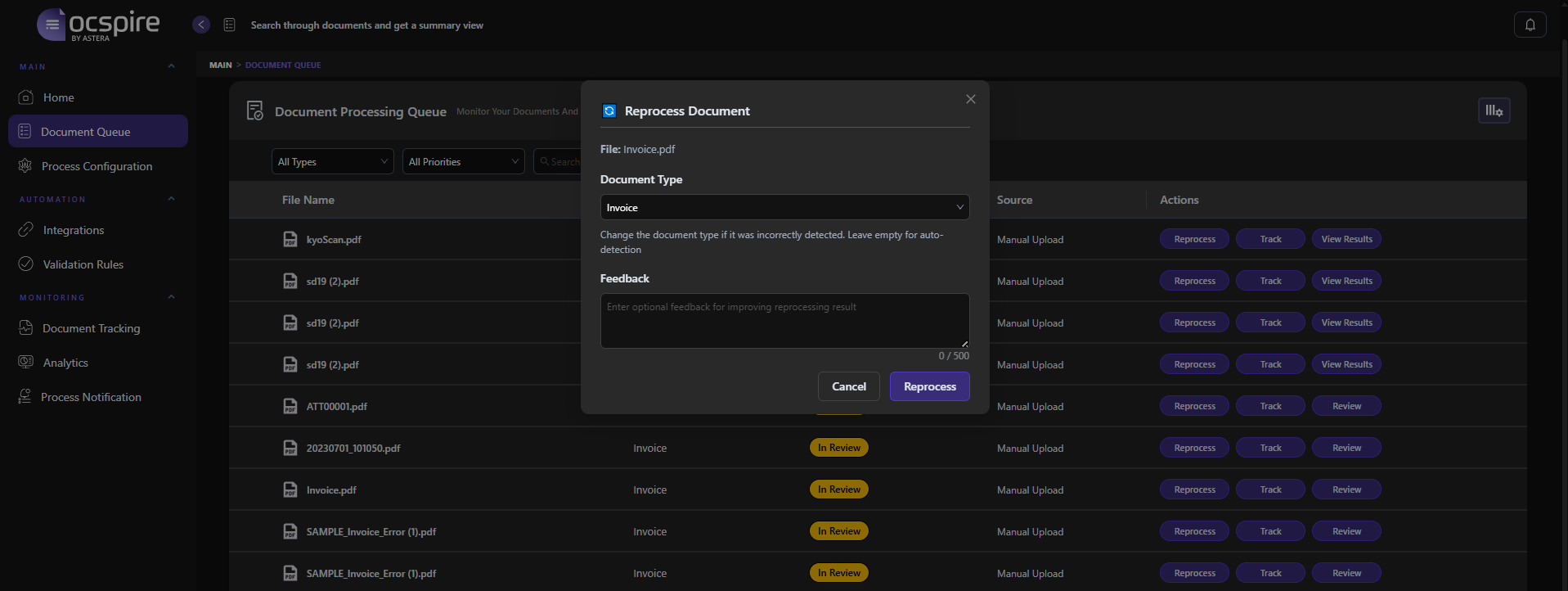
1. Navigate to **Main > Document Queue** in the left sidebar.
2. Locate the document you want to reprocess in the Document Processing Queue.
3. Click the **Reprocess** button in the Actions column. This button appears for documents with Success or In Review status.
4. The **Reprocess Document** dialog will open.
#### The Reprocess Document Dialog
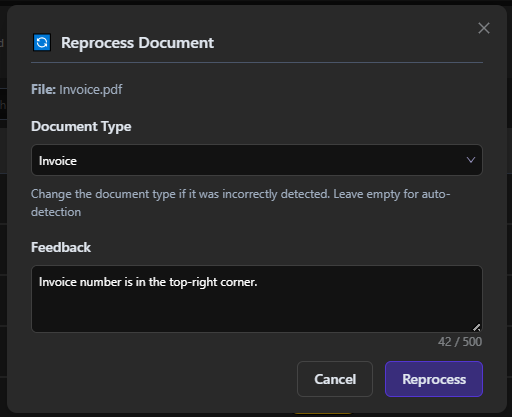
The dialog contains two key elements:
**Document Type** – A dropdown menu to change the document classification if it was incorrectly detected. Available types include: Bank Statement, Credit Report, ID, Invoice, Mortgage Application, Pay Slip, Purchase Order, and Receipt. Leave empty to allow auto-detection.
{% hint style="info" %}
*Note: Set “Other” category when reprocessing your document to check if results have improved.*
{% endhint %}
**Feedback** – A text field (up to 500 characters) where you can provide natural language instructions to improve the extraction results.
### Writing Effective Feedback
Good feedback doesn't need to be complicated. Simple, clear instructions work best. Here are easy patterns you can follow:
#### Pattern 1: Tell It Where to Look
When a field is missed or wrong, point to its location.
**Template:** *"\[Field name] is in the \[location]."*
**Examples:**
* *"Invoice number is in the top-right corner."*
* *"Total amount is in the last row of the table."*
#### Pattern 2: Clarify Which Column to Use
When data comes from the wrong column, specify the correct one.
**Template:** *"\[Field name] is under the \[column name] column."*
**Examples:**
* *"Unit price is under the 'Rate' column."*
* *"Weight is under the 'Net Wt (KG)' column."*
#### Pattern 3: Specify the Format You Need
When data formatting is wrong, state what you want.
**Template:** *"Format \[field] as \[desired format]."*
**Examples:**
* *"Format dates as YYYY-MM-DD."*
* *"Format amounts as numbers without currency symbols."*
#### Pattern 4: Fix Data Quality Issues
When extracted data has quality problems, describe the fix.
**Template:** *"\[Action] from \[field/values]."*
**Examples:**
* *"Remove extra spaces from all field values."*
* *"Trim leading zeros from account numbers."*
#### Pattern 5: Combine Instructions When Needed
You can combine multiple simple instructions in one feedback.
**Example:**
*"Quantity is in whole numbers. Price is under 'Unit Cost' column. Remove currency symbols from amounts."*
### Real-World Feedback Examples
Here are practical examples showing how simple feedback solves common extraction issues:
#### Invoice: Wrong Total Extracted
**Problem:** System extracted the subtotal instead of the final amount due.
**Feedback:** *"Total is the final 'Amount Due' at the bottom, not the subtotal."*
#### Shipping Document: Incorrect Weight Values
**Problem:** Weight values are being pulled from the wrong column.
**Feedback:** *"Net weight is under 'N.W. (KG)' column. Gross weight is under 'G.W. (KG)' column."*
#### Purchase Order: Quantity Format Issues
**Problem:** Quantities are showing decimal values when they should be whole numbers.
**Feedback:** *"Quantity should be whole numbers only. Unit of measure is in the 'UOM' column."*
#### Any Document: Extra Spaces in Text
**Problem:** Extracted text has unnecessary spaces between words or at the start/end.
**Feedback:** *"Remove extra spaces from all text values."*
#### Bank Statement: Date Format Wrong
**Problem:** Dates show as "12/Jan/2025" but need to be in standard format.
**Feedback:** *"Format all dates as DD-MM-YYYY."*
#### Receipt: Tax Amount Missing
**Problem:** The tax/VAT amount was not extracted.
**Feedback:** *"Tax amount is on the line labeled 'VAT' or 'Tax' above the total."*
#### ID Document: Name Fields Combined
**Problem:** First and last name extracted as one field.
**Feedback:** *"First name and last name are separate fields. Last name is labeled 'Surname'."*
#### Invoice: Line Items Merged Together
**Problem:** Multiple line items are combined into one entry.
**Feedback:** *"Each row in the items table is a separate line item. Extract them individually."*
#### Any Document: Unwanted Currency Symbols
**Problem:** Amounts include $ or other currency symbols when you need plain numbers.
**Feedback:** *"Return all amounts as numbers without currency symbols or commas."*
#### Pay Slip: Wrong Period Amounts
**Problem:** Year-to-date values extracted instead of current pay period.
**Feedback:** *"Use values from 'Current Period' column only, not 'YTD' column."*
#### Multi-Page Document: Duplicate Values
**Problem:** Same data extracted multiple times from different pages.
**Feedback:** *"Use summary totals from the last page only. Ignore page subtotals."*
#### Invoice: Wrong Company Extracted as Vendor
**Problem:** The buyer's company name was extracted instead of the seller/vendor.
**Feedback:** *"Vendor name is in the 'From' or 'Sold By' section at the top, not the 'Bill To' section."*
### Quick Reference: Common Feedback Phrases
Copy and adapt these ready-to-use phrases:
* *"\[Field] is in the \[top/bottom/left/right] section."*
* *"\[Field] is under the '\[Column Name]' column."*
* *"Format \[field] as \[format]."*
* *"Remove \[currency symbols/extra spaces/commas] from \[field]."*
* *"\[Field] should be \[whole numbers/decimals/text only]."*
* *"Extract each \[row/item/entry] separately."*
* *"Use values from '\[Section/Column]' only."*
* *"Ignore \[YTD/subtotals/header rows]."*
### Troubleshooting
| **Issue** | **Solution** |
| --------------------------------------- | ---------------------------------------------------------------------------------------------------------------------------------------- |
| Reprocessing doesn't improve results | Try being more specific about field locations and exact labels. Include the document section where the data appears. |
| Wrong document type detected repeatedly | Manually select the correct document type from the dropdown before reprocessing. Add feedback mentioning the document type. |
| Feedback character limit reached | Focus on the most critical corrections. Use abbreviated but clear instructions. Consider reprocessing multiple times for complex issues. |
| Dates still in wrong format | Specify both the source format and desired format. Example: "Convert dates from MM/DD/YYYY to YYYY-MM-DD format." |
| Numbers include unwanted characters | Explicitly state: "Format amounts as plain numbers without currency symbols, commas, or percentage signs." |
### Related Features
* **Document Queue** – Monitor and manage all documents in your processing pipeline.
* **Document Tracking** – View detailed processing history and status for each document.
* **Human Review** – Manually review and correct extraction results for documents requiring attention.
* **Validation Rules** – Set up automated rules to validate extracted data against business requirements.